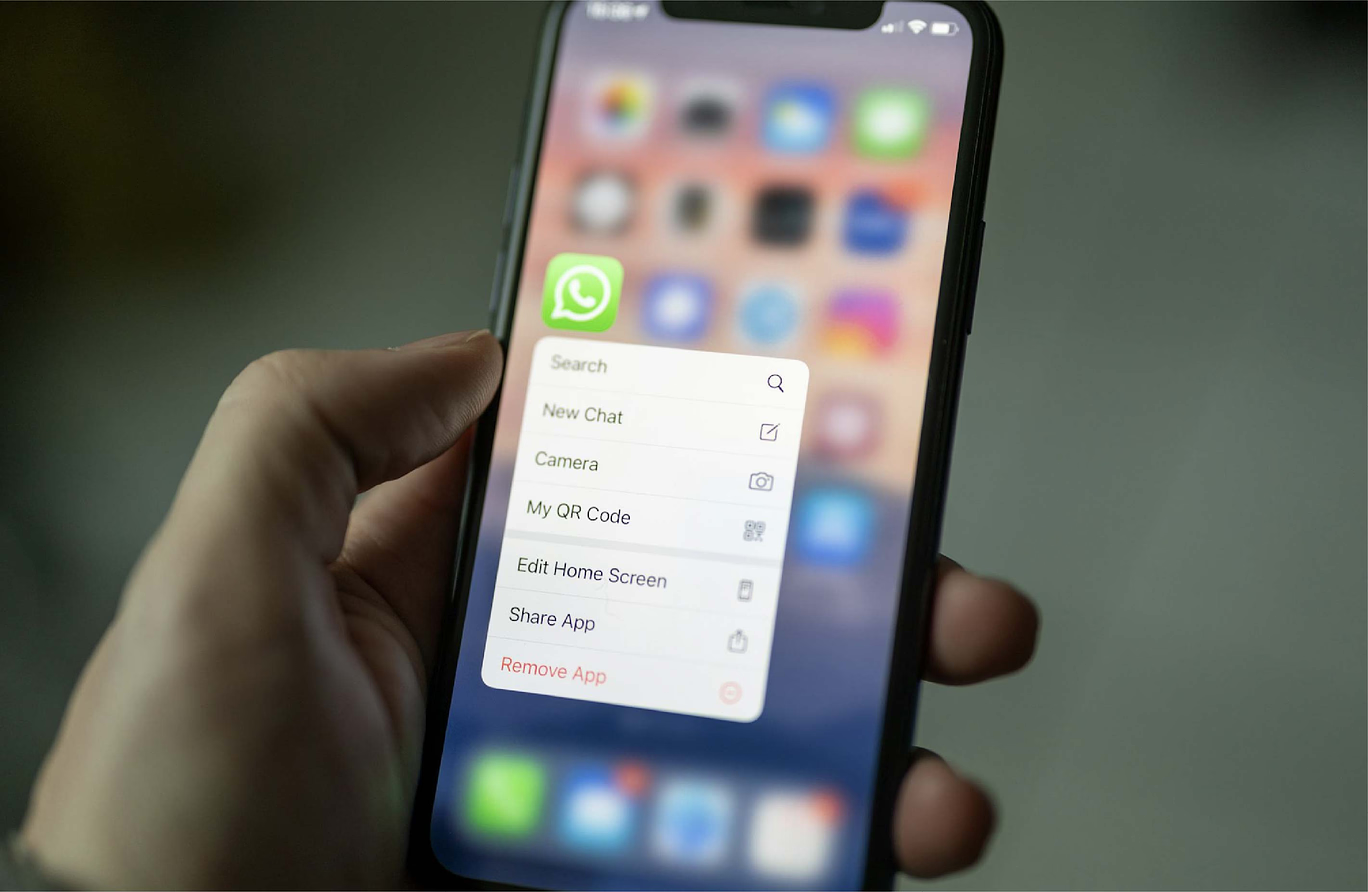
If you’re running a small business in 2026 and you’re not on WhatsApp Business yet, you’re leaving money on the table.
It’s the app your customers already have open on their phone, no downloads to convince them to make, no app store friction, just a chat window they check a dozen times a day.
Setting it up properly takes about fifteen minutes.
Here’s exactly how to go from download to your first message, without the faff.
Step 1: Download the right app
There are two WhatsApp apps for businesses, and it’s worth knowing the difference before you start:
WhatsApp Business App – free, designed for solo traders and small teams managing chats from a single phone.
WhatsApp Business Platform (API) – built for businesses that want automation, multiple agents, or tools like booking systems and order updates layered on top.
For a small independent shop or salon, the free app is a fine starting point. For anything with real order volume, bookings, or a team fielding enquiries, the API is where the actual growth happens, which is where a setup partner like Chabo comes in, turning a basic chat thread into something closer to a proper booking and sales app.
Use a number that isn’t already tied to a personal WhatsApp account, a dedicated business line, landline, or VoIP number all work. a
WhatsApp will send a verification code by SMS or, if that fails, offer a voice call instead. Keep this number consistent everywhere; it becomes your customers’ main line of contact, so changing it later is a headache worth avoiding.
Step 3: Build your business profile
This is the bit people rush, and it’s the bit customers actually judge you on. Fill in:
Business name (matching your branding elsewhere) Category and short description Address, hours, and website A clean profile photo (usually your logo)
A complete profile builds trust instantly, and it’s also what shows up if a customer taps your name mid-conversation to check you’re legitimate.
Step 4: Set up the essentials, catalogue, quick replies, and away messages
Once your profile’s live, the built-in tools are what save you hours every week:
Catalogue – upload products or services with prices and photos, so customers can browse without leaving the chat.
Quick replies – save answers to your most common questions (opening hours, delivery costs, returns policy) so you’re not retyping the same message fifty times a day.
Greeting and away messages – set expectations immediately, especially outside business hours.
Labels – tag chats as “new order”, “pending payment”, or “follow up” so nothing slips through the cracks.
Step 5: Send your first message
Here’s the catch worth knowing: WhatsApp’s rules mean businesses can’t cold-message customers first.
The customer has to message you initially, or opt in via a click-to-chat link, QR code, or Facebook/Instagram ad. So your “first message” is really about making it as easy as possible for customers to start the conversation, put a WhatsApp link in your email signature, Instagram bio, and website footer, or generate a QR code for your till point or shopfront using WhatsApp’s own link generator.
Once they message you, reply promptly, warmly, and in the same tone as the rest of your brand voice. First impressions on WhatsApp are fast, customers expect a reply within minutes, not hours.
Where it goes from here
The free app will get you started, but most businesses hit its ceiling quickly: no automation, one device at a time, no way to plug in bookings or payments.
That’s the gap Chabo fills, connecting WhatsApp to real booking flows, order tracking, and loyalty programmes, so the chat window does the work an entire app would otherwise do.